Want to play Minecraft Bedrock Edition on Android and sign in to Xbox Live to play online with friends and sync your world data, but don't know where to start? This complete step-by-step tutorial will guide you from A to Z: from downloading the APK, installing, configuring settings, to logging in with your Xbox Live Microsoft account. Follow our simple instructions below!
How to Install Minecraft Bedrock + Xbox Live Login Guide
To successfully install Minecraft Beta 1.19.0.20 APK with full multiplayer support, follow these 15 simple steps:
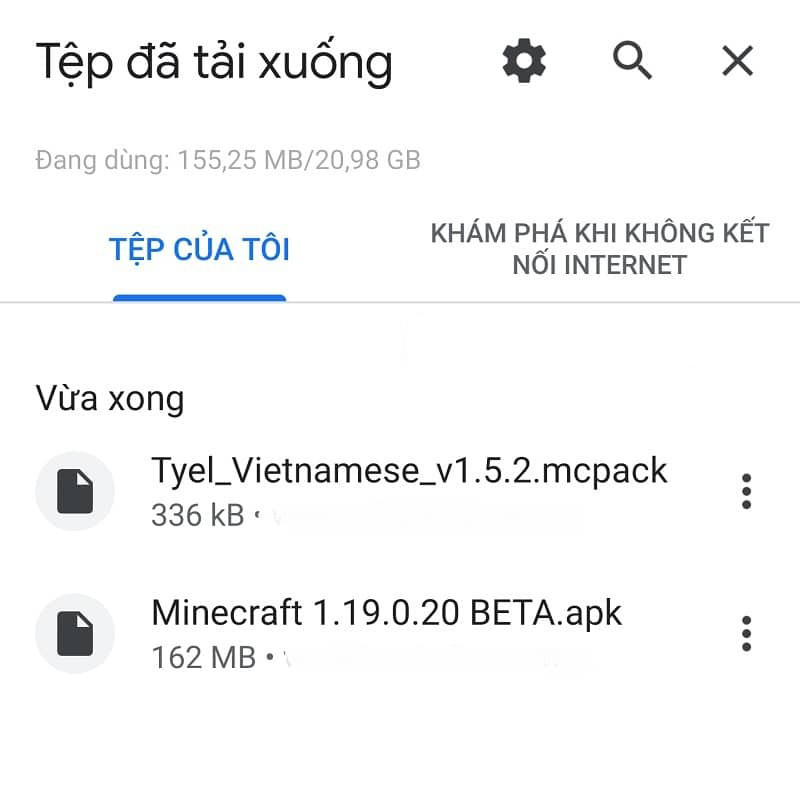
Step 1: Download the Minecraft APK installation file shared above by Minecraft PE to your mobile device.
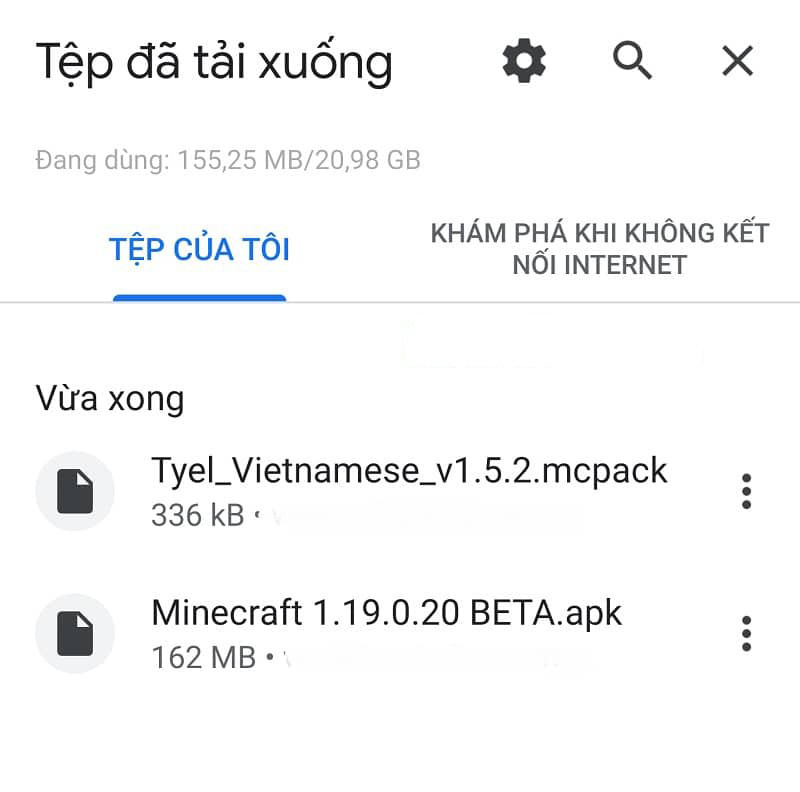
Step 2: Once the download finishes, navigate to your Downloads folder and tap on Minecraft 1.19.0.20 BETA.apk.
Tap on the downloaded APK file
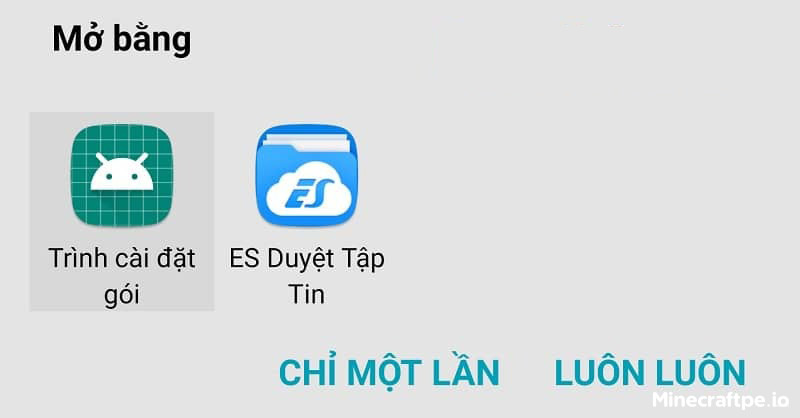
Step 3: Select Package Installer to process the installation package.
Select Package Installer
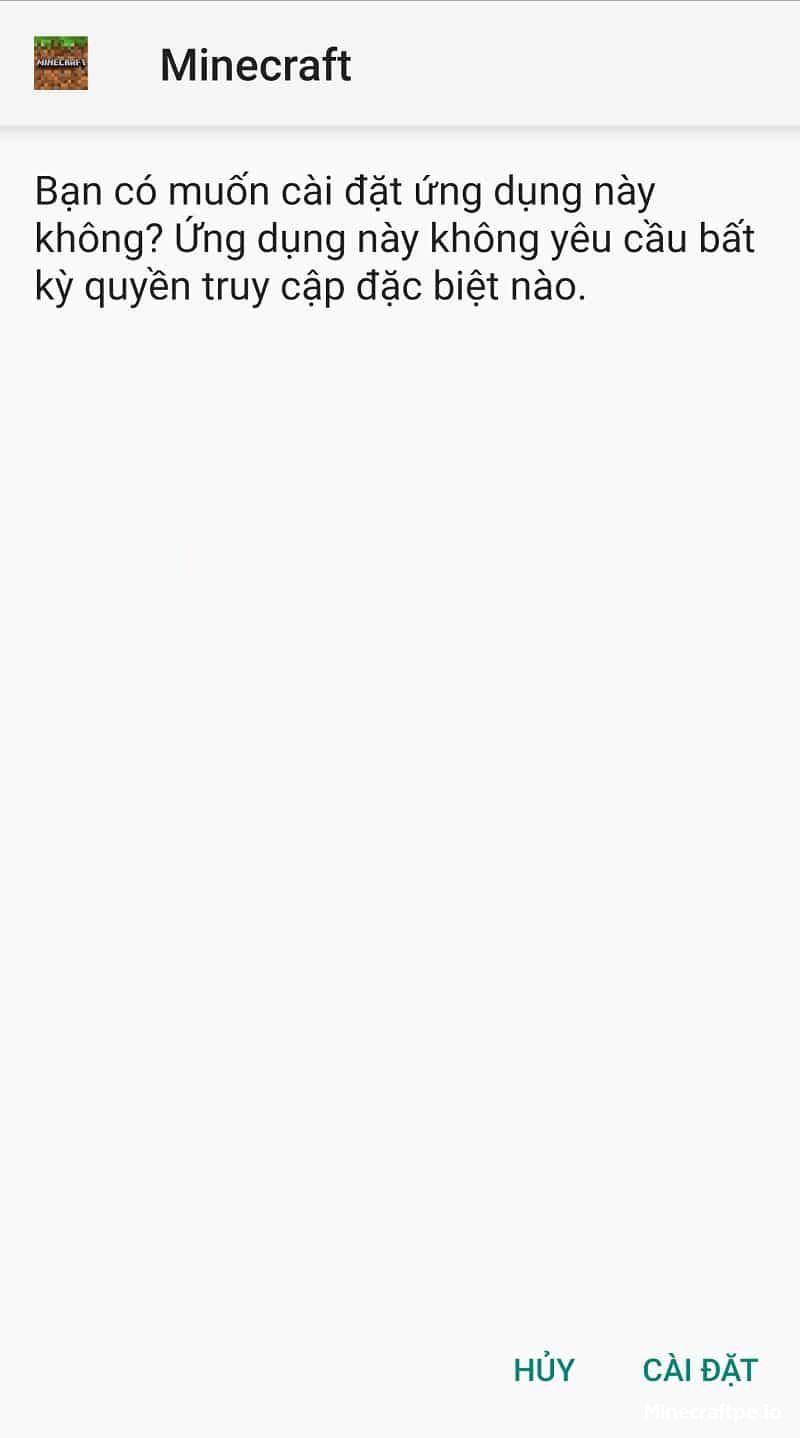
Step 4: Tap Install to begin setting up the game on your Android device.
Tap Install
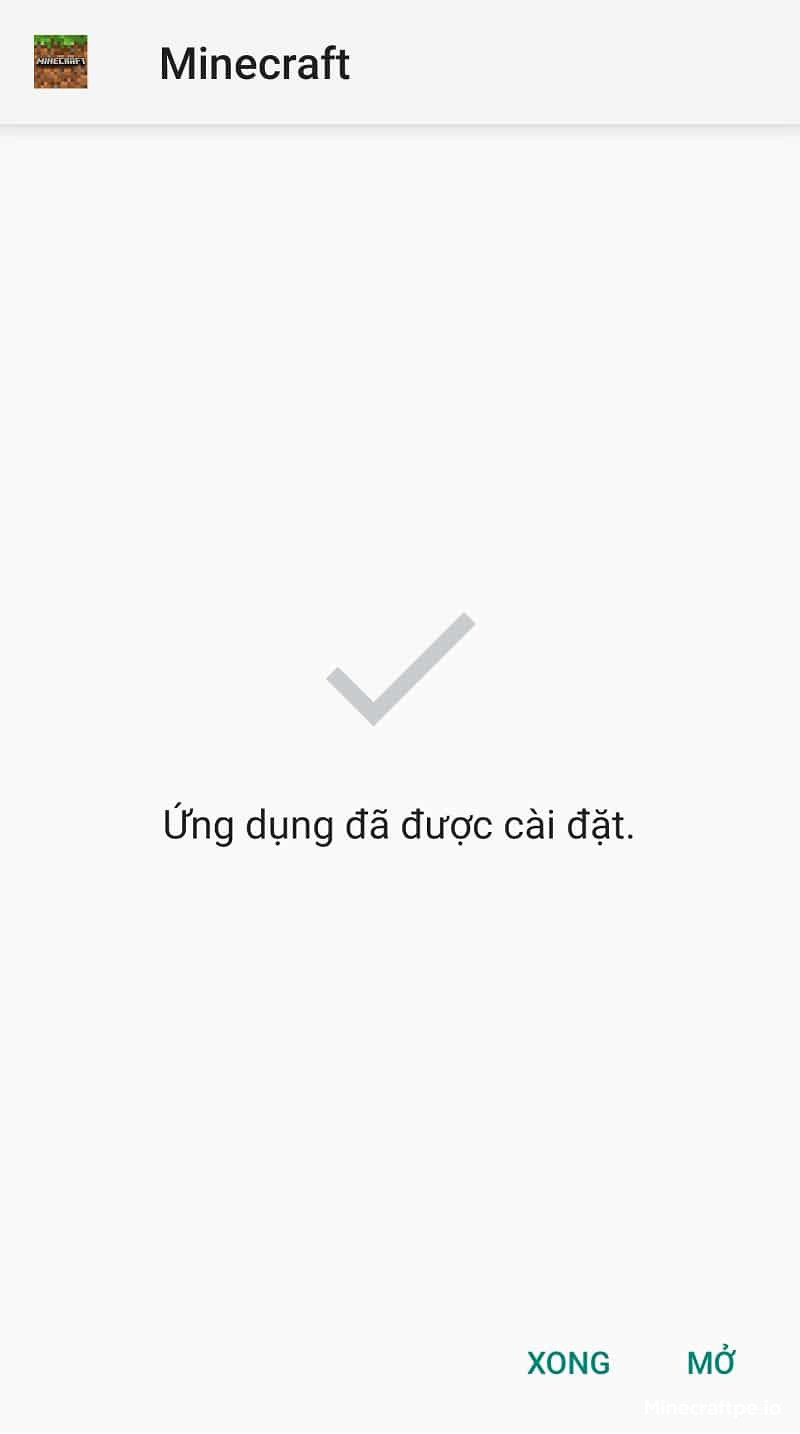
Step 5: After installation completes, tap Done or Open.
Tap Done or Open
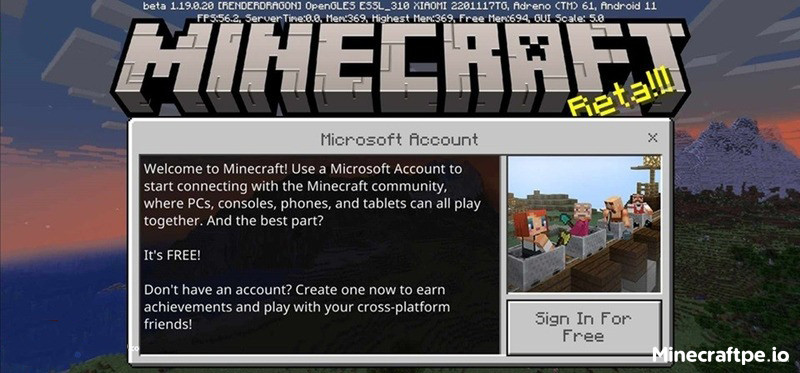
Step 6: On the title screen, tap Sign In For Free to log in with your Xbox Live account, or tap X to dismiss.
Tap X to dismiss or sign in
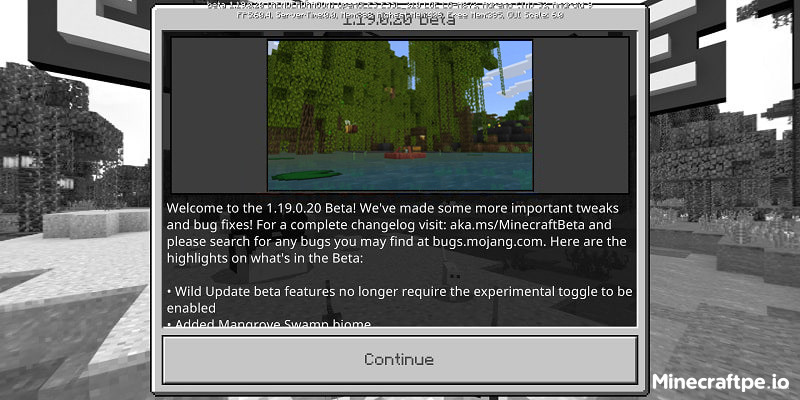
Step 7: Tap Continue to proceed.
Tap Continue
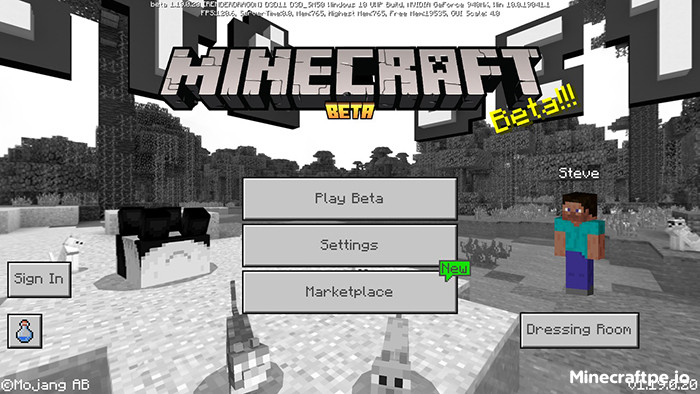
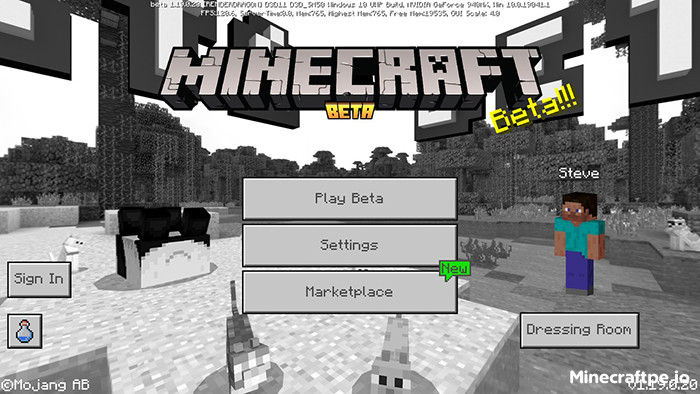
Step 8: The initial default game interface will appear in English ready to launch!
Initial game interface in English
Step 9: You can customize resource packs and textures by tapping on any .mcpack file directly from your downloads.
Tap on addon file to import
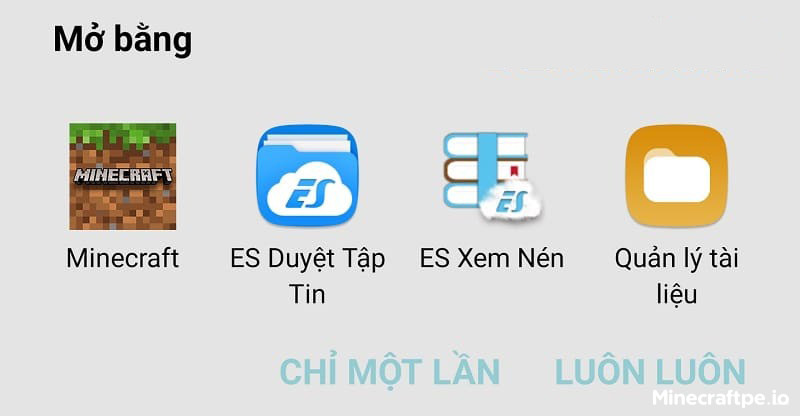
Step 10: In the Open with dialog, select Minecraft to import automatically.
Select Minecraft
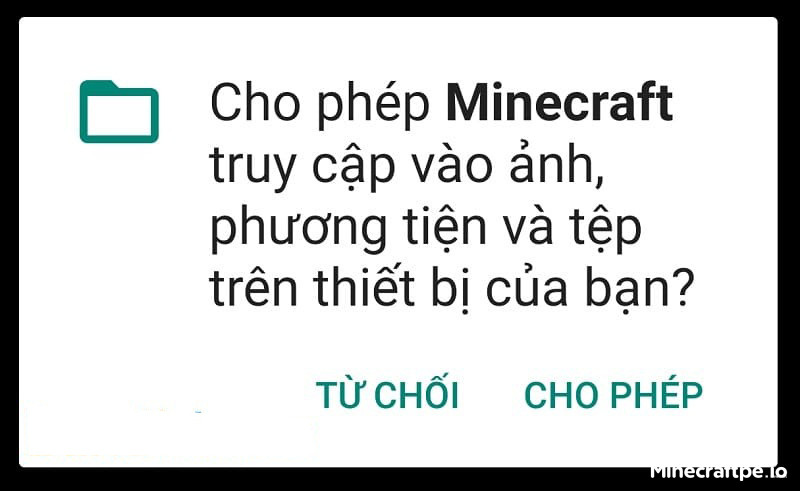
Step 11: Tap Allow to grant storage permissions for custom worlds.
Tap Allow
Step 12: From the main menu, tap Settings to configure game performance, render distance and controls.
Tap Settings
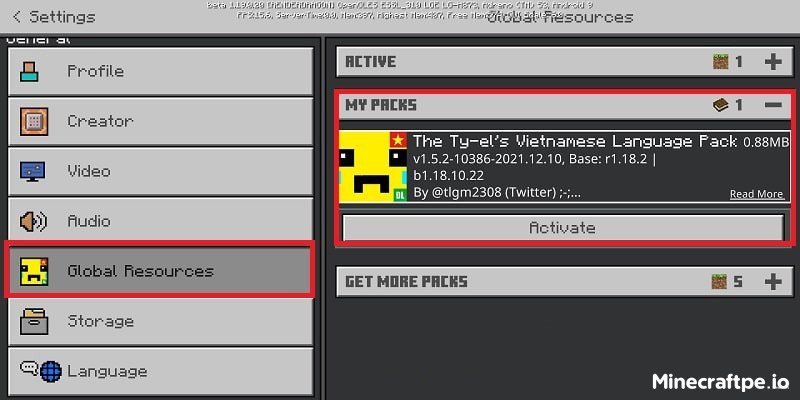
Step 13: Under Global Resources, tap My Packs to activate shaders or texture packs.
Tap Activate
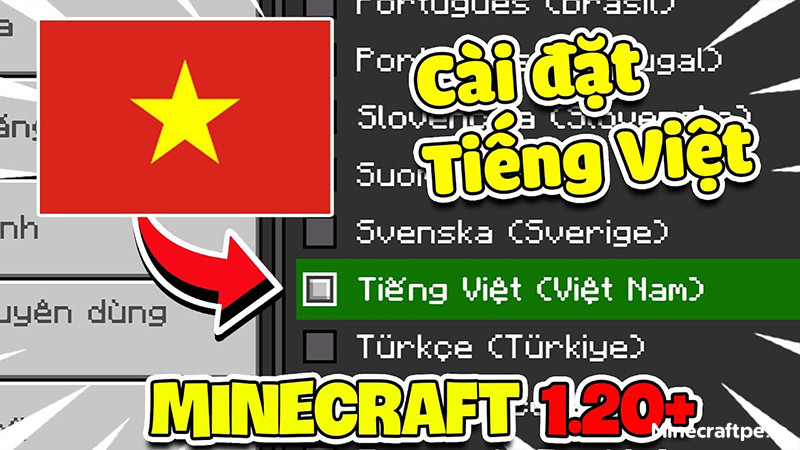
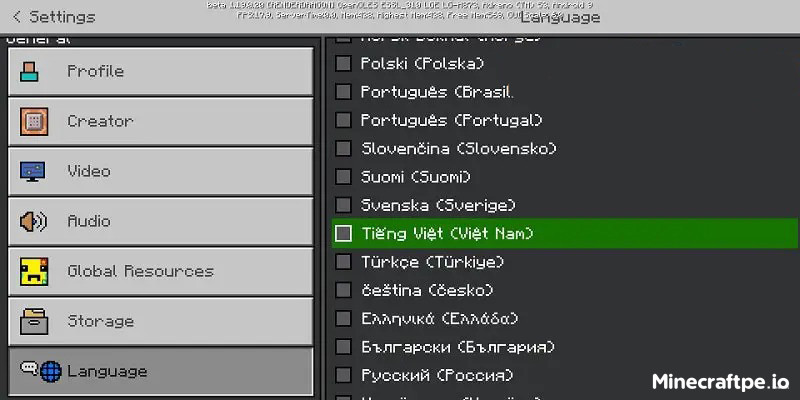
Step 14: Under Language, you can freely switch between English and dozens of supported international languages.
Language settings selector
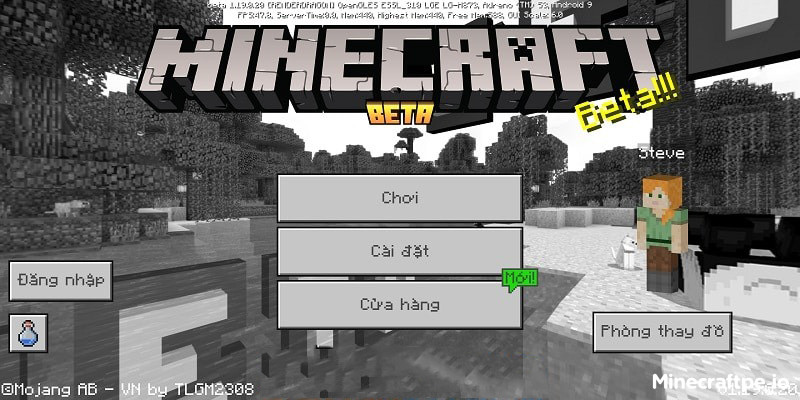
Step 15: Return to the title screen — tap Play to start building your boundless sandbox world!
Successfully installed Minecraft Beta on Android
Conclusion
Downloading the free Minecraft APK with Xbox Live online multiplayer support provided by Minecraft PE ensures you have the most complete sandbox experience. We hope this step-by-step tutorial helps you install the game effortlessly!
Bạn muốn chơi Minecraft giao diện Tiếng Việt, lại còn đăng nhập được Xbox Live để chơi online, kết bạn, đồng bộ dữ liệu nhưng chưa biết bắt đầu từ đâu? Bài viết này sẽ hướng dẫn bạn từng bước từ A–Z: từ chọn phiên bản, tải và cài đặt, chuyển ngôn ngữ sang tiếng Việt, đăng nhập Xbox Live (Microsoft account), đến xử lý một số lỗi thường gặp. Chỉ cần làm theo từng bước, kể cả “gà công nghệ” cũng có thể tự cài được.
Cách Cài Đặt Minecraft Tiếng Việt + XboxLive – Minecraftpe.org
Để cài đặt phiên bản 1.19.0.20 APK của game Minecraft Beta, các bạn chỉ cần thực hiện theo các bước hướng dẫn chi tiết sau:
Bước 1: Tải file game apk và file tiếng Việt được Minecraft PE chia sẻ ở trên về điện thoại.
Bước 2: Sau khi hoàn tất tải về, các bạn vào Tệp đã tải xuống và nhấn vào file Minecraft 1.19.0.20 BETA.apk.
Nhấn vào file APK vừa tải xuống
Bước 3: Nhấn vào Trình Cài Đặt Gói.
Nhấn vào Trình Cài Đặt Gói
Bước 4: Nhấn chọn Cài đặt để thiết lập game.
Nhấn chọn Cài đặt
Bước 5: Sau khi ứng dụng đã hoàn tất cài đặt, các bạn nhấn Xong hoặc Mở đều được.
Nhấn Xong hoặc Mở
Bước 6: Tại giao diện đầu game như hình, các bạn nhấn vào Sign In For Free để đăng nhập XboxLive hoặc bạn có thể nhấn X để tắt thông báo.
Nhấn X
Bước 7: Nhấn chọn Continue để tiếp tục.
Nhấn chọn Continue
Bước 8: Tại giao diện đầu game như hình, các bạn sẽ thấy toàn bộ đều là tiếng Anh.
Giao diện game bằng tiếng Anh
Bước 9: Vào Tệp đã tải xuống và nhấn vào file Tyel_Vietnamese_v1.5.2.mcpack.
Nhấn vào file Tyel_Vietnamese_v1.5.2.mcpack
Bước 10: Xuất hiện thông báo Mở bằng, các bạn nhấn vào Minecraft.
Nhấn vào Minecraft
Bước 11: Tiếp tục nhấn Cho Phép.
Nhấn Cho Phép
Bước 12: Vào lại game, tại giao diện chính, các bạn nhấn vào Settings để cài tiếng Việt cho game.
Nhấn vào Settings
Bước 13: Kéo và nhận vào Global Resources, tại My Packs các bạn nhấn vào file tiếng Việt rồi nhấn vào Activate.
Nhấn vào Activate
Bước 14: Kéo xuống mục Language và tìm đến Tiếng Việt (Việt Nam), tích vào để để chuyển toàn bộ game sang tiếng Việt.
Tích vào Tiếng Việt (Việt Nam)
Bước 15: Quay lại giao diện trang chủ, các bạn đã thấy toàn bộ đều được chuyển sang tiếng Việt rồi, lúc này các bạn chỉ cần nhấn vào Chơi để bắt đầu xây dựng thế giới của bạn thôi.
Cài đặt Minecraft 1.19.0.20 Beta thành công
Kết Luận
Tải Minecraft phiên bản APK miễn phí có hỗ trợ cài ngôn ngữ tiếng Việt + XboxLive được Minecraft PE chia sẻ sẽ giúp bạn chơi game được trọn vẹn nhất. Hy vọng hướng dẫn chi tiết trong bài viết trên sẽ giúp bạn cài game thành công.